Claude Code Integration: IDEs, MCP, and Production Tips
Discover how to maximize productivity with Claude Code integration. Use CLI, VS Code, or JetBrains for seamless automation and interactivity.

Run Claude Code from the CLI when you need automation, scripting, or sessions that survive a crashed editor. Use the VS Code or JetBrains extension when you want inline diffs and editor context without leaving your workflow. Use Desktop for visual review, and web or mobile when you're managing a cloud session away from your machine. For connecting Claude Code to anything outside the editor, from CI pipelines to Slack to internal APIs, the Model Context Protocol (MCP) is the standard mechanism, and you add servers with a single claude mcp add command.
The decision rule is simple: if you need automation or persistence, pick the CLI. If you need editor-native interactivity, pick the extension.
- CLI — scripting, Agent SDK work, background sessions, full feature set
- VS Code / JetBrains — inline diffs, selection context, keyboard shortcuts
- Desktop — visual review without a terminal
- Web / mobile — remote control of cloud-hosted sessions
Anthropic's platform documentation confirms this split: CLI, Desktop, VS Code, JetBrains, web, and mobile each map to a distinct job, and the platform you choose should follow the task, not the other way around.
Key Takeaways
Reliable Claude Code integration depends on matching the platform to the job, treating MCP as the standard connector, and curating tool access rather than exposing everything by default.
| Point | Details |
|---|---|
| Match surface to task | Use the CLI for automation and persistence, extensions for editor-native review work. |
| MCP is the standard connector | Add external tools and APIs with claude mcp add, choosing HTTP, ws, or stdio by use case. |
| Standalone CLI is separate | The VS Code extension bundles a private CLI that won't run in the integrated terminal. |
| Curate before you connect | Verify MCP servers, restrict tool exposure, and set deny rules on sensitive files. |
| agent-swarm applies these lessons | agent-swarm.dev runs Claude Code workers in isolated containers with curated MCP access for production reliability. |
Table of Contents
- Which Claude Code Platform Fits Your Workflow?
- How Do You Install and Configure the IDE Plugins?
- CLI or Extension: Which One Should You Trust for Production Work?
- What Is MCP and How Do You Connect External Tools?
- Agent SDK or Managed Agents: Which Should You Use?
- How Do You Secure MCP and IDE Integrations?
- How Do You Wire Claude Code Into CI, Slack, and Scheduled Jobs?
- Fixing the Most Common Setup Problems
- What Production Use Actually Teaches You About Reliability
- What Actually Determines Whether an Integration Holds Up
- Run Claude Code Workers Without Babysitting Every Session
- Sources
- FAQ
Which Claude Code Platform Fits Your Workflow?
The CLI is the workhorse. It's what you reach for when you're wiring Claude into a script, chaining it with the Agent SDK, or kicking off a job you want running in the background while you do something else. Because it's not tied to an editor window, a CLI session keeps working even if your IDE crashes or your laptop goes to sleep, which matters more than it sounds once you're running multi-hour refactors or scheduled maintenance tasks.
The VS Code and JetBrains extensions trade some of that flexibility for tighter integration. You get inline diff viewers, one-click acceptance of file edits, and the ability to select a block of code and hand it to Claude with full file context attached. That's a real productivity win for day-to-day coding, but it comes at the cost of a few CLI-only capabilities, which we'll get into next.
Desktop, web, and mobile solve a different problem: visibility and control when you're not at your dev machine. Desktop gives you a clean visual interface for reviewing longer sessions. Web and mobile let you check on or steer a cloud session from a browser or phone, useful when a long-running task needs a quick approval and you're not near your keyboard.
Here's how the common jobs map to a surface:
- CI automation, scheduled maintenance → CLI (scriptable, no UI dependency)
- PR prep, inline review, quick edits → VS Code or JetBrains
- Ad-hoc debugging with visual diffs → Desktop
- Checking on a long job remotely → Web or mobile
Pro Tip: Keep a CLI session running in a background terminal even when you're primarily working in an extension. If the IDE hangs or you need to restart it, the CLI session keeps its state, and you can reconnect with /ide instead of losing hours of context.
How Do You Install and Configure the IDE Plugins?
Getting Claude Code working inside VS Code or JetBrains takes about five minutes, but a few settings decide whether the experience is smooth or frustrating.
For VS Code:
- Install the Claude Code extension from the marketplace.
- Sign in through the extension's onboarding flow, which walks through authentication and a short checklist.
- Open the chat panel (the Spark icon) and start typing, using
@to mention files or symbols for context. - Switch between Auto and Edit modes depending on whether you want Claude to apply file changes automatically or wait for approval.
The extension bundles its own private copy of the CLI to power the chat panel, but that bundled copy is not the same thing as a standalone install. If you want to run claude directly in VS Code's integrated terminal, the official VS Code documentation is clear that you need the standalone CLI installed separately. Skipping this step is the single most common source of "claude: command not found" errors inside the editor.
For JetBrains (IntelliJ, PyCharm, WebStorm, and similar):
- Install the plugin from the JetBrains marketplace.
- Run the
/idecommand from a terminal session to connect it to the open project. - Check the plugin settings for the Claude command path and the networking toggle that controls whether the local MCP server accepts connections beyond loopback.
Unlike the VS Code extension, the JetBrains plugin doesn't bundle the CLI at all. It runs a local MCP server, internally named ide, that the standalone CLI connects to. That means claude has to be on your PATH, or explicitly pointed to in the plugin's settings, before anything works. The plugin does add real value beyond routing, though: it shares your current selection and inline diagnostics with Claude automatically, so you don't have to paste error messages by hand.
Common gotchas worth knowing up front:
- Extension bundles a private CLI that won't respond to terminal commands.
- PATH issues are the top cause of "not found" errors in both editors.
- WSL users often hit networking snags because the IDE and the CLI process think they're on different hosts.
CLI or Extension: Which One Should You Trust for Production Work?
Extensions are excellent for day-to-day coding, but they are not a full substitute for the CLI, and treating them as interchangeable causes real problems in production workflows.
A handful of features simply don't exist in the editor plugins: Agent SDK integrations, most scripting patterns, and background sessions that outlive the IDE process. If your workflow depends on Claude running unattended, on a schedule, or as part of a larger automation chain, the CLI is not optional. Practitioner experience backs this up directly: a widely cited comparison of Claude Code platforms found that CLI sessions reliably survive IDE crashes in a way editor-bound sessions don't, because the process isn't hostage to the editor's own stability.
Session lifecycle is the core difference. An extension session lives and dies with the IDE window. Close VS Code, and unless you've explicitly reconnected via /ide, that context is gone. A CLI session running in a terminal, background job, or tmux pane keeps going regardless of what your editor does.
- CLI: scripting, Agent SDK, long-running background jobs, survives IDE restarts
- Extension: inline diffs, selection context, faster for interactive editing, tied to editor lifecycle
Pro Tip: Run claude inside VS Code's integrated terminal for the best of both: you keep the editor's file tree and diff view visible while getting full CLI behavior, including features the chat panel doesn't expose.
What Is MCP and How Do You Connect External Tools?
The Model Context Protocol is what turns Claude Code from a smart autocomplete into something closer to a team member with real access to your systems. MCP servers give Claude stateful, structured access to tools, databases, and APIs, so instead of pasting a Slack message into a prompt, Claude can query Slack, your CI system, or an internal service directly.
Adding a server is a one-line operation:
- Run
claude mcp addwith the server's name and connection details. - Choose a transport based on how the tool communicates.
- Confirm the connection status before relying on it in a session.
Transport choice matters more than it looks:
- HTTP is the recommended default for most remote tools and APIs; it's simple, stateless, and easy to debug.
- WebSocket (ws) fits cases needing persistent, server-initiated push, like a monitoring tool that needs to interrupt a session with an alert.
- stdio is for local tool processes running on the same machine as Claude Code, common for lightweight internal scripts.
- SSE still shows up in older integrations but is considered deprecated in favor of HTTP or WebSocket.
Once connected, Anthropic's MCP documentation shows a health-check status for each server, so you can confirm a connection is live rather than assuming it. When a server needs authentication, expect one of two patterns: an OAuth flow that opens a browser for consent, or dynamic headers where credentials get injected per request rather than stored in plaintext config.
Plugins can bundle their own MCP servers too, which matters for teams that want CI alerts or monitoring events pushed directly into a Claude session instead of requiring someone to check a dashboard. That's the shift MCP represents: instead of a chat tool you visit, Claude becomes something with standing access to the systems your team already runs, which is also why the security section below isn't optional reading.

Agent SDK or Managed Agents: Which Should You Use?
Once you're past ad-hoc sessions and into production agent workloads, you have two real options, and picking the wrong one costs you either control or convenience.
The Agent SDK, available in Python and TypeScript, exposes the same agent loop and built-in tools, file operations, bash, web fetch, MCP, that power Claude Code itself. You get hooks for intercepting tool calls, subagent support for splitting complex work, and full control over the execution environment. This is the right call when you're embedding agent behavior inside your own product or need custom sandboxing that a hosted service won't give you.
Managed Agents trade some of that control for operational convenience: hosted sandboxes, long-running jobs that don't need your own infrastructure, scheduled deployments, and stateful sessions that persist without you managing the underlying containers.
- Choose the Agent SDK when you need custom tool sets, local sandboxing, or tight integration with existing infrastructure.
- Choose Managed Agents when you want scheduled or long-running jobs without owning the hosting problem.
- Both support MCP, so your tool integrations carry over regardless of which you pick.
The practical test: if you're building a product feature, embed the SDK. If you're automating an internal recurring job, managed execution usually gets you there faster.
How Do You Secure MCP and IDE Integrations?
Every MCP server you connect is a new door into your codebase, credentials, or internal systems, and the risk isn't theoretical. Anthropic's own security guidance is explicit that prompt injection becomes a real threat the moment an external MCP server can pull untrusted content into a session, since that content can carry instructions the model wasn't meant to follow.
A few concrete habits close most of the gap:
- Verify any MCP server's source and maintainer before connecting it, the same way you'd vet a new dependency.
- Use
PreToolUsehooks or allowlists to restrict which tools a session can call, rather than exposing everything by default. - Set Read and Write deny rules on sensitive paths (credentials,
.envfiles, deployment configs) so they can't be touched even if a prompt tries to steer Claude there. - Rotate credentials tied to any MCP server regularly, and test new servers in a sandboxed project before pointing them at production repos.
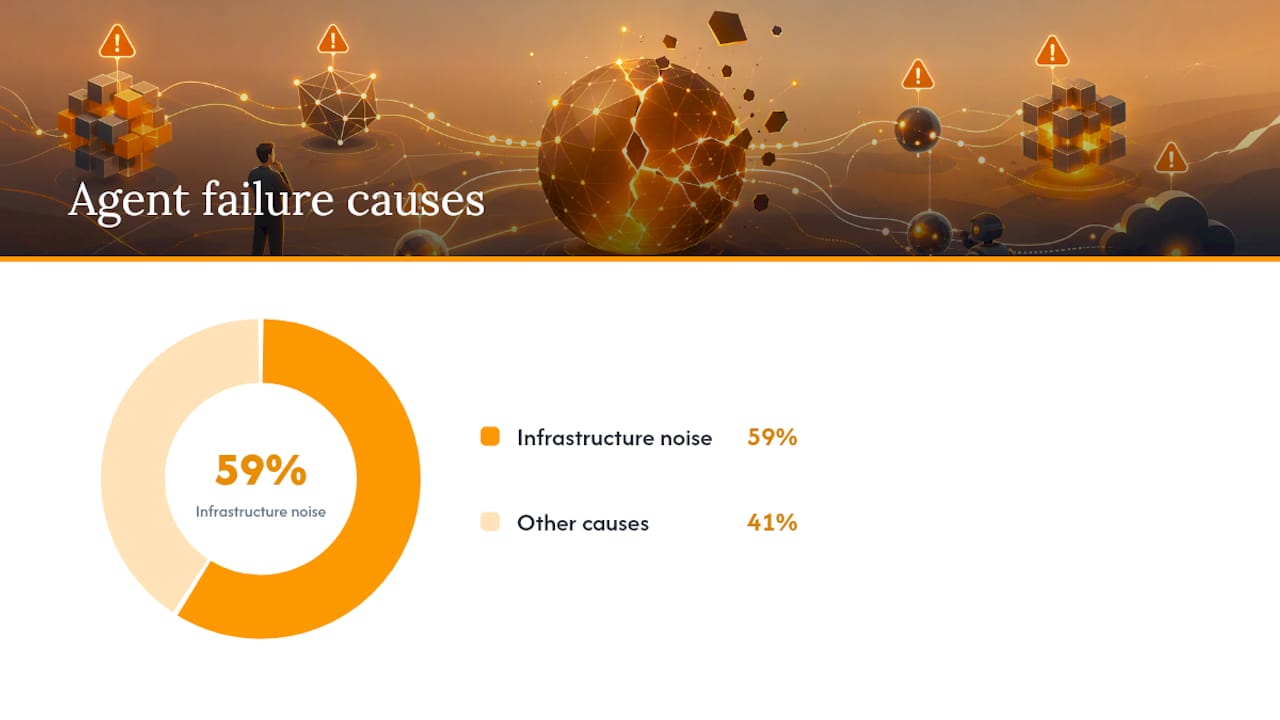
Operational data backs up why this discipline matters: 59% of agent failures trace back to infrastructure noise rather than logic bugs, which means the servers, networks, and permissions around an agent cause more breakage than the agent's own reasoning does.
The JetBrains plugin's local MCP server writes an ephemeral auth token to a lock file, and by default only accepts loopback connections. Flipping the networking setting to accept broader connections trades a real security boundary for convenience, so leave it off unless you specifically need remote IDE control.
How Do You Wire Claude Code Into CI, Slack, and Scheduled Jobs?
The most common production patterns for Claude Code integration examples fall into four buckets, and each one solves a different kind of repetitive work.
- CI/CD automation — run Claude inside GitHub Actions or GitLab CI to review pull requests automatically or run scheduled maintenance passes across a repo.
- ChatOps — set up a Slack
@Claudeflow so teammates can ask questions or trigger tasks without opening a terminal; Claude Tag gives the agent a shared organizational identity across channels. - Browser automation — connect Chrome for tasks that need actual page interaction; reach for API-based integration instead whenever the target service has one, since APIs are more stable than DOM-dependent automation.
- Scheduled tasks — use Dispatch for cron-like recurring runs, such as a daily dependency audit or nightly test sweep.
Anthropic's platforms documentation lists Chrome, GitHub Actions, Slack, and scheduled tasks among the standard integrations, which tells you these four patterns aren't edge cases, they're the default shape most teams converge on.
Fixing the Most Common Setup Problems
Most Claude Code integration issues trace back to one of four causes, and working through them in order saves time. For an extra layer of trust and verification, consider auditing whether your site is cited properly by Claude AI.
- If an extension reports "claude not found," check that the standalone CLI is installed and on PATH, since the bundled copy inside VS Code's extension won't respond to terminal commands.
- On WSL, prefer mirrored networking mode over exposing the IDE's MCP port to the wider network. It resolves most host-mismatch issues without weakening your security posture.
- If an MCP server shows "Needs authentication," run
claude mcp loginagain. Expired or misconfigured OAuth tokens are the usual culprit. - If the JetBrains plugin loses connection, clear the stale lock file, restart the IDE, and re-run
/ideto re-establish the local MCP server.
Work through PATH first, then networking, then auth. In practice, that order resolves the vast majority of connection failures without needing to dig into logs.
What Production Use Actually Teaches You About Reliability
Running agent-driven workflows at scale surfaces lessons that documentation alone doesn't. Infrastructure noise, not model reasoning, is what breaks most sessions, which means retries, observability, and isolation deserve more engineering attention than prompt tuning does.
Tool curation matters just as much. Pruning an MCP toolset down to what's actually needed measurably improves how reliably an agent picks the right action, a lesson borne out when agent-swarm cut 75 of 90 MCP tools and saw the agent get noticeably smarter rather than more limited.
A production trace showing 26 tool calls collapsed into one script, at a marginal cost of $0.02, is the kind of resource-efficiency signal that convinces engineering teams the orchestration overhead is worth it.
Capchase's documented case study reflects the same pattern at the team level: fewer, better-curated integrations beat a sprawling toolset every time.
What Actually Determines Whether an Integration Holds Up
The conventional advice on this topic treats MCP setup as a checklist: install the plugin, run the command, connect the server, done. That undersells the real work. The teams that get reliable results treat the tool list itself as a design decision, not an afterthought, because a bloated set of connected tools doesn't just slow things down, it actively degrades how well the model picks the right action.
The other overrated assumption is that the extension replaces the CLI. It doesn't, and pretending otherwise is how teams end up surprised when a background job dies with the IDE window. If your integration touches anything automated, scheduled, or unattended, build around the CLI and treat the extension as a review layer on top, not the foundation.
What deserves more attention than it gets is the security posture around MCP servers themselves. Verifying a server before connecting it takes minutes; cleaning up after a compromised one does not. Prioritize that step before you prioritize adding more integrations.
Run Claude Code Workers Without Babysitting Every Session
Setting up one Claude Code integration is straightforward. Running a dozen of them across engineering, content, and ops without someone manually restarting sessions and re-checking MCP connections is the actual problem most teams eventually hit. agent-swarm.dev is built for exactly that gap: a lead agent breaks objectives into tasks, assigns them to isolated Claude Code, Codex, or OpenCode workers running in their own Docker containers, and keeps shared memory compounding across every run instead of starting cold each time.

Where a single MCP connection or IDE plugin gets you one assisted session, agent-swarm coordinates many workers against your existing Slack, GitHub, and Linear setup, with the same tool-curation and reliability lessons covered above already built into how it runs. If you're weighing this against a hosted agent or a single rented engineer, the comparison against alternatives lays out where each model fits. Join the Cloud waitlist and connect your first workflow when access opens.
FAQ
What Can Claude Code Integrate With?
Claude Code integrates with IDEs like VS Code and JetBrains, CI/CD systems like GitHub Actions and GitLab CI, ChatOps tools like Slack, browser automation via Chrome, and any external tool, database, or API reachable through an MCP server.
Does Claude Code Have IDE Integration?
Yes. Claude Code has official extensions for both VS Code and JetBrains IDEs, offering inline diffs, selection context, and diagnostic sharing directly inside the editor.
Can Claude Code Be Integrated With VS Code?
Yes, through the official VS Code extension, which bundles a private CLI for its chat panel; running claude in the integrated terminal requires installing the standalone CLI separately.
Can Claude Code Integrate With Design Tools?
Claude Code's core integrations focus on development tools, IDEs, CI/CD, and MCP-connected APIs rather than dedicated design platforms; teams needing design-adjacent workflows typically connect those tools through a custom MCP server instead.
Is Setting Up MCP Difficult for a New Project?
Adding a server takes one command, claude mcp add, but choosing the right transport and authentication pattern is where most setup time actually goes, and platforms like agent-swarm.dev apply curated, pre-vetted tool sets to skip that trial-and-error entirely.
Recommended
- 26 Tool Calls, One Script, $0.02: Measuring “Code Mode” in Production | agent-swarm.dev
- We Hid 75 of Our Agent's 90 MCP Tools — And It Got Smarter | agent-swarm.dev
- Why Our Agents Sleep for 4 Minutes 30 Seconds: The Anthropic Cache Cliff | agent-swarm.dev
- Stop Fighting Context Window Limits — Design for Compaction Instead | agent-swarm.dev
Related field notes
We Deleted --resume: A Bounded Preamble Beats Session Resume
Why Agent Swarm dropped claude --resume and codex.resumeThread for a 2,000-token context preamble that survives container restarts and harness re-routing.
Your Agents Write the Titles Your Trackers Read
An IMDEA audit of 9 AI chat services found trackers receiving titles, permalinks and screenshots, not just prompts. Agent swarms multiply those artifacts.
Best Open-Source AI Agent Platforms: Self-Host
Twelve open-source AI agent platforms you can self-host today, ranked by GitHub stars: license, install path, best use case and one real limitation each.