Slack AI Agents for Developers: Build, Deploy, Scale
Unlock the power of Slack AI agents to enhance productivity. Build, deploy, and scale intelligent apps that take action and integrate seamlessly.

Slack AI agents are autonomous, goal-oriented apps that act inside Slack using conversational context to plan, reason, and take real actions — not just respond. Three capabilities define them: (1) they use workspace messages, files, and connected app data to produce contextually relevant outputs; (2) they take actions inside Slack via Agentforce and the Slack API, such as creating channels, updating canvases, or posting summaries; (3) they connect to external tools through the Model Context Protocol (MCP) and developer APIs like chat.startStream. This guide covers both paths — no-code deployment via Workflow Builder and Agent Templates, and the full developer path using Slack Bolt, streaming APIs, and MCP.
- Use Slack context (messages, files, connected apps) to produce relevant, workspace-aware outputs
- Take actions inside Slack via Agentforce, API calls, and Workflow Builder automations
- Integrate with external tools and LLMs through MCP and developer APIs like
chat.startStream
Key Takeaways
Slack AI agents deliver the most value when they combine tight job scoping, proper governance, and the right deployment path — no-code for speed, custom agents for complexity, and multi-agent orchestration for workflows that exceed what a single agent can handle.
| Point | Details |
|---|---|
| Agents vs. bots | Agents reason, plan, and call tools autonomously; bots pattern-match and fire webhooks. |
| Start narrow | Define a one-sentence job and two measurable success metrics before building anything. |
| Governance first | Set app approval policies, minimize scopes, and exclude guests before any production rollout. |
| No-code for speed | Workflow Builder's "Generate AI response" step supports up to 15 conditions and covers most triage and summarization needs. |
| Agent-swarm for complexity | Agent-swarm handles parallel subtasks, persistent memory, and isolated worker execution for multi-step Slack automations. |
Table of Contents
- What are Slack AI agents and how do they differ from bots?
- Core capabilities you get with Slack AI agents
- What agent types fit which team roles?
- How to build a Slack AI agent: architecture and APIs
- How to deploy agents without writing code
- What security and governance controls do admins need?
- Which Slack plans include AI agent features?
- A practical checklist to go from idea to production
- How multi-agent orchestration complements Slack agents
- The case for starting narrower than you think you need to
- Agent-swarm.dev cuts the time from Slack trigger to multi-step result
- Primary sources and further reading
- Sources
- FAQ
What are Slack AI agents and how do they differ from bots?
A Slack AI agent is an autonomous, goal-oriented application that can plan a sequence of steps, call external tools, and maintain context across a conversation — not just pattern-match a command to a canned reply. The canonical response loop is: receive input → reason/plan → call tools → stream/render output. In practice, that means an agent in #support can triage an incoming ticket, query your ticketing system, update a canvas with resolution steps, and post a summary thread — all without a human in the loop.
The distinction from a traditional bot is architectural. A bot listens for keywords and fires a webhook. An agent holds a reasoning step between input and output, which lets it decompose multi-part requests, decide which tools to invoke, and adjust its plan mid-execution based on what those tools return. A copilot, by contrast, typically assists a human who remains in control of each action; an agent can complete a full task autonomously given a goal and guardrails.
Context persistence is the practical differentiator. Because agents live inside Slack, they start with workspace history already in scope — no cold-start problem, no context import step. That's what makes the agent model worth the added complexity over a simple bot.
Core capabilities you get with Slack AI agents
Slack's agent platform covers a wider feature surface than most teams use on day one. The capabilities that matter most for design decisions:
- Conversational context and Enterprise Search: Agents draw on channel history, files, canvases, and connected app data at inference time via Retrieval-Augmented Generation (RAG), so responses reflect what's actually happening in your workspace.
- Actions via Agentforce: Agentforce lets agents create channels, send DMs, update canvases, and surface structured Salesforce data alongside unstructured Slack conversations — the key to closing the loop between reasoning and real work.
- Slackbot as built-in agent: Slackbot is Slack's native personal AI agent. It can summarize files, draft content in a user's tone, find meeting times, and pull answers from connected apps without leaving Slack.
- Text streaming via
chat.startStream: Streaming responses reduce perceived latency significantly. Thechat.startStreamAPI pushes tokens to the UI as they're generated, which matters for longer reasoning outputs. - Suggested prompts and surfaces: Agents can expose suggested prompts in the split-view container, top navigation entry, and app threads — the three dedicated surfaces Slack provides for agent UX.
- Workflow Builder integration: The "Generate AI response" step in Workflow Builder lets you wire agent logic into automated flows without writing code.
- MCP connectors: Slack supports MCP as both client and server, so external models can discover and invoke Slack capabilities (message search, canvas updates) and agents can call external tool servers securely.
Pro Tip: Start with contextual summarization and channel-level triage actions. These two use cases have the shortest path from prototype to measurable value, and they stress-test your scoping and RAG configuration before you add complex tool calls.
What agent types fit which team roles?
The agent model maps cleanly onto recurring, context-heavy workflows by role.
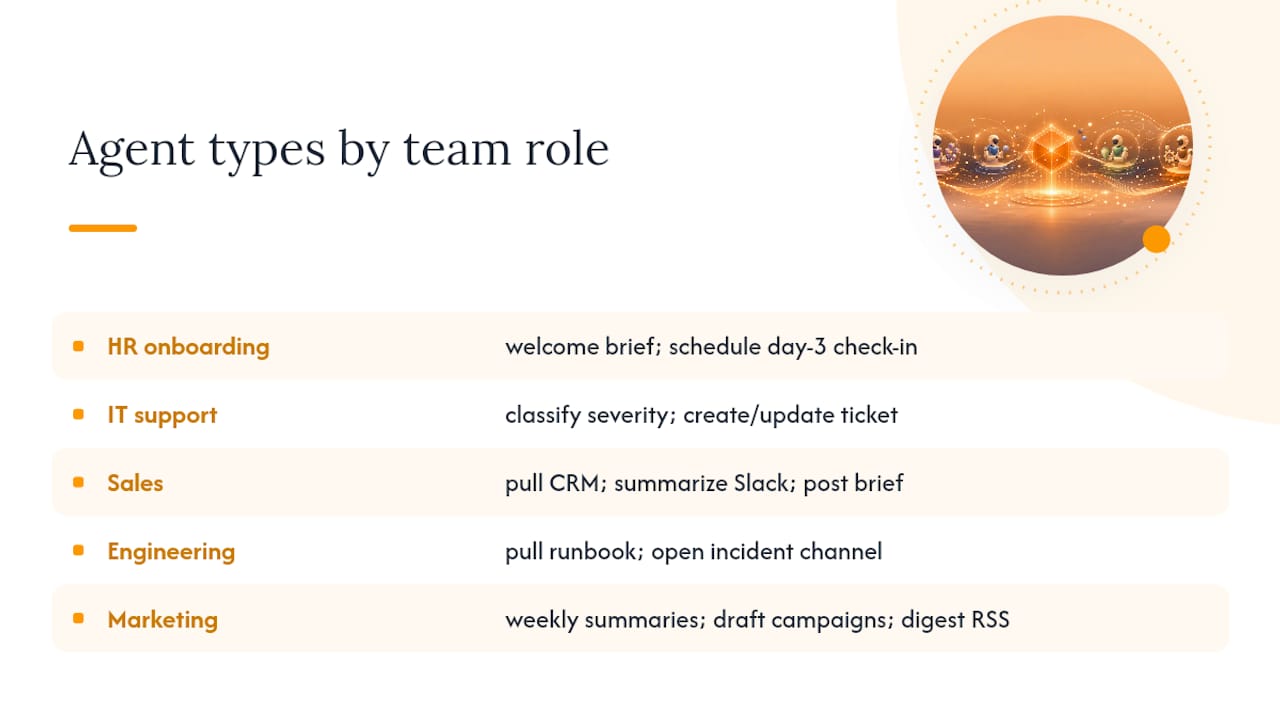
HR and onboarding agents handle the highest-volume, most repetitive Slack interactions. A new hire posts in #onboarding, the agent reads the channel history and connected HRIS data, generates a personalized welcome brief with links to relevant canvases, and schedules a check-in DM for day 3. Slackbot's ability to draft content in a user's tone makes this feel less robotic than a templated bot reply.
IT support is where triage agents earn their keep fastest. Trigger: a user posts an error in #it-help. Agent action: classify severity, query the ticketing system, create or update a ticket, post a structured summary with next steps, and tag the on-call engineer if severity is high. The entire loop runs in under 30 seconds for well-scoped agents. Note that guests are excluded from AI apps by default, so your IT agent won't surface to external contractors unless you explicitly configure access.
Sales agents prep deal briefs before calls. Trigger: a rep posts a company name in #deal-prep. Agent action: pull CRM opportunity data via Agentforce, summarize recent Slack conversations about the account, and post a structured brief. This is where combining structured Salesforce data with unstructured Slack context produces outputs neither system could generate alone.
Engineering and incident response agents shine in #ops and #incidents. Trigger: PagerDuty alert posted to channel. Agent action: pull runbook from canvas, query recent deploys from GitHub, post a structured incident brief, and open a dedicated incident channel. The agent doesn't resolve the incident — it eliminates the first 10 minutes of context-gathering that slows every on-call engineer.
Marketing and content agents handle recurring content workflows: weekly channel summaries, campaign brief drafts triggered by a specific emoji reaction, or automated competitive update digests from connected RSS feeds. Plan limits apply here — some Workflow Builder AI steps require Business+ or higher.
How to build a Slack AI agent: architecture and APIs
The development pattern is: design the agent's job narrowly, wire the response loop, secure the minimum required scopes, and test iteratively in a staging workspace before touching production.
Architecture flow
receive input (Slack event)
  → reason/plan (LLM call with workspace context)
  → call tools (MCP server, Slack API, external APIs)
  → stream/render output (chat.startStream → UI)
  → persist context (RAG index update, canvas write)
Each step maps to a concrete Slack API surface. The developer docs define this loop explicitly and reference the specific APIs and scopes required for native UI integration.
Required scopes and APIs
assistant:write— unlocks native UI features: thread title management, status updates, split-view integration. Without it, your agent is limited to basic message posting and loses the native agent feel.channels:history,files:read,search:read— needed for RAG-style context retrieval from workspace content.chat:write— standard message posting.chat.startStream— the streaming API that pushes token-by-token output to the Slack UI, reducing perceived latency for longer responses.- MCP client/server roles — Slack can act as an MCP client (calling external tool servers) or as an MCP server (exposing Slack capabilities like channel search to external models).
Integration steps for a custom agent prototype
- Define the agent's job. Write a one-sentence job description: "This agent triages
#supporttickets, classifies severity, and updates the ticketing system." Scope creep at this stage is the most common cause of agents that feel unreliable. - Register scopes in your app manifest. Include
assistant:write,channels:history, and any tool-specific scopes. Submit for admin approval in your test workspace before writing code. - Implement the response loop using Slack Bolt. Wire the
assistant_thread_startedandmessageevents to your reasoning function. Keep the LLM call and tool dispatch in separate, testable functions. - Add tool connectors. For external APIs, implement MCP client calls. For Slack-native actions (canvas updates, channel creation), use the Slack Web API directly inside the tool dispatch layer.
- Wire
chat.startStream. Replace blockingchat.postMessagecalls withchat.startStreamfor any response that may take more than 2 seconds to generate. Stream tokens as they arrive from your LLM. - Test in split-view. Slack's split-view container is the primary agent surface. Test every response type there — not just in a DM — because rendering behavior differs.
Pseudocode: minimal response loop with streaming
# Bolt app: handle assistant thread messages
@app.event("message")
def handle_message(event, client, context):
    thread_ts = event.get("thread_ts") or event["ts"]
    channel = event["channel"]

    # 1. Retrieve workspace context (RAG)
    workspace_context = retrieve_context(channel, thread_ts)

    # 2. Reason: call LLM with context + user message
    stream = llm.stream(
        system=AGENT_SYSTEM_PROMPT,
        context=workspace_context,
        user_message=event["text"]
    )

    # 3. Open a streaming response in Slack
    stream_response = client.chat_startStream(
        channel=channel,
        thread_ts=thread_ts
    )

    # 4. Push tokens as they arrive
    for token in stream:
        client.chat_updateStream(
            channel=channel,
            stream_ts=stream_response["stream_ts"],
            text=token
        )

    # 5. Call tools if the LLM signals a tool use
    if stream.tool_calls:
        dispatch_tools(stream.tool_calls, client, channel, thread_ts)
Pro Tip: Instrument every tool call with a structured log entry (tool name, input hash, latency, success/failure). This telemetry is what lets you trace a bad agent decision back to a specific tool response in production — without it, debugging agentic failures is guesswork.
For observability patterns specific to Slack-integrated agents, the Slack thread as task surface post covers how to use the thread itself as a live audit log. And if you're thinking through agent identity and persistent memory design, SOUL.md and the 4-file identity stack is worth reading before you finalize your context architecture.
How to deploy agents without writing code
Workflow Builder and Agent Templates let non-technical users create useful agent automations quickly — no Bolt, no scopes, no app manifest. The "Generate AI response" step can reference Slack data sources (channel history, canvases, files, message history) and supports up to 15 conditions for conditional logic, which covers most triage and summarization use cases.
Building a simple AI workflow
- Open Workflow Builder and select a trigger (scheduled time, emoji reaction, new message in channel, or form submission).
- Add a "Generate AI response" step. Choose your data sources: channel history, a specific canvas, or uploaded files.
- Write your prompt. Three examples that work well out of the box:
- "Summarize the last 7 days of messages in this channel into 5 bullet points, grouped by topic."
- "Draft a welcome message for a new hire joining [team name], using the onboarding canvas as context."
- "When a message contains the 🚨 emoji, classify its severity (P1/P2/P3) and suggest a next action."
- Bind the output to a channel post, a DM, or a canvas update.
- Add conditional branches if needed (up to 15 conditions per workflow).
- Publish and test with a small group before rolling out workspace-wide.
When to use no-code vs. custom agents: Workflow Builder is the right choice for fast prototypes, scheduled summaries, and simple triage flows where latency above a few seconds is acceptable. Invest in a custom agent (Bolt + streaming APIs) when you need sub-2-second streaming responses, complex multi-tool orchestration, advanced security controls, or behaviors that require assistant:write scope for native UI integration.
What security and governance controls do admins need?
Enterprise governance must be planned before any production agent goes live — access, scopes, and approvals are the control points, not an afterthought. Slack's admin controls let workspace owners and admins require app approval before installation, manage app management policies at the org level for Enterprise, and control which agents are visible to users workspace-wide.
Security checklist for admins before a production rollout:
- App approval policy: Require admin approval for all AI app installations. For Enterprise Grid, set an org-level app management policy that governs which agents can be installed across workspaces.
- Scope minimization: Review every scope in the app manifest. Request only what the agent's job requires.
channels:historyon a specific channel is safer than workspace-wide read access. - Guest exclusion: Guests are excluded from AI apps by default. Confirm this setting is active and document any exceptions explicitly.
- Agent visibility controls: Admins can hide specific agents from the workspace-wide agent directory. Use this to limit early pilots to defined user groups.
- RAG and data retention: Slack uses RAG so AI responses draw on workspace content at inference time. Slack's published position is that it does not use customer data to train third-party LLMs, and zero-data-retention arrangements are available for some LLM gateway configurations. Verify the specific terms for your plan and any third-party LLM integrations before production.
- Toxicity filters and guardrails: Slack applies background toxicity scoring to agent outputs. Supplement this with your own prompt-level guardrails and output validation in custom agents.
- Logging and usage metrics: Instrument every agent action. For custom agents, log tool calls, LLM response times, and error rates. For Workflow Builder agents, use Slack's built-in workflow analytics.
For a deeper look at real-world agentic threat models — privilege escalation, scope creep, and prompt injection patterns — the OWASP agentic threats case study is a concrete reference.
Pro Tip: Run your first pilot in a dedicated test workspace with a scoped set of 5–10 users. Capture error rates, scope access logs, and user feedback for 2 weeks before requesting org-wide approval. This staged approach gives you the telemetry to answer security questions before they become blockers.
Which Slack plans include AI agent features?
AI features are gated by plan and admin settings. Many capabilities require Business+ or Enterprise+, or the Slack AI add-on — check feature availability before committing to a rollout architecture. Agentforce availability and some out-of-the-box agents may require contacting Slack sales directly.
Key deployment constraints to check before rollout:
- Guest users are excluded from AI apps by default across all plans.
- Workspace vs. org-level admin toggles differ between standalone workspaces and Enterprise Grid — confirm which controls apply to your deployment.
- Third-party AI apps require Marketplace review and admin approval regardless of plan.
- Rate limits and quota considerations apply to both Workflow Builder AI steps and custom agent API calls — test at expected volume in staging before production.
A practical checklist to go from idea to production
A short, defined pilot cadence accelerates learning and reduces the risk of deploying an agent that behaves unexpectedly at scale.
- Define the agent's job and success metrics. One sentence for the job. Two or three measurable outcomes: time saved per workflow, action success rate, user utility score (1–5 from a weekly survey).
- Choose no-code or custom. Use Workflow Builder for simple summarization and triage. Use Bolt + streaming APIs for complex tool calls, low-latency requirements, or advanced security needs.
- Provision a test workspace and get admin approvals. Register your app, request scopes, and get approval before writing production code. Scope changes after deployment cause friction.
- Build the prototype. For no-code: build the workflow in Workflow Builder with a test trigger. For custom: implement the minimal response loop with
chat.startStreamand one tool connector. - Run a 2–4 week pilot with defined users. Limit to 5–15 users. Collect structured feedback weekly. Track error rate, action success rate, and any security incidents.
- Collect metrics and iterate. Review telemetry: LLM latency, tool call success rate, user utility scores, and error patterns. Adjust prompts, scopes, and tool logic before scaling.
- Scale and harden. Expand user group, add monitoring dashboards, formalize the app approval policy, and document the agent's job description and guardrails for your admin team.
Suggested success metrics to track during pilot:
- User utility score (qualitative, 1–5 weekly survey)
- Action success rate (tool calls that complete without error)
- Error rate (failed LLM calls, tool timeouts, scope denials)
- Time saved per workflow (qualitative estimate from users, validated against baseline)
- Security incidents (unauthorized scope access, unexpected data exposure)
Sample rollout timeline: weeks 0–2 design and approvals; weeks 2–4 prototype build; weeks 4–8 pilot with defined users; week 8+ scale and harden.
How multi-agent orchestration complements Slack agents
Multi-agent orchestration augments Slack agents by handling complex task decomposition, persistent shared memory, and specialized worker roles that call Slack actions as part of a broader workflow — capabilities that a single Slack agent or Workflow Builder step can't cover alone.
The integration pattern is concrete: a trigger fires in Slack (a message, an emoji reaction, a scheduled event). A lead agent receives the task, breaks it into worker assignments based on the job type, and dispatches specialized workers — each running in an isolated container with a defined scope. Workers call Slack APIs to post messages, update canvases, or create channels as part of their subtask. The lead agent collects worker outputs, compiles the final result, and posts it back to the originating Slack thread. Real session examples show this pattern in production across engineering, content, and operations workflows.
What this saves in practice:
- Reduced context-switching: Workers operate in parallel with shared memory, so the lead agent doesn't re-fetch context for each subtask.
- Faster incident resolution: A lead agent can simultaneously dispatch a runbook-lookup worker, a deploy-history worker, and a Slack-notification worker — compressing what would be sequential steps into a parallel execution.
- More reliable multi-step automations: Isolated worker containers mean a failure in one subtask doesn't corrupt the shared state of the broader workflow.
For teams evaluating self-hosted vs. cloud deployment: self-hosting gives you full control over data residency, LLM gateway configuration, and compliance posture, at the cost of infrastructure overhead. Cloud deployment trades that control for faster onboarding and managed scaling. The stateless worker design post covers the architectural trade-offs in detail.
If you're evaluating agent density — how many agents is too many for a given workflow — the node composition and agent density deep-dive is a useful reference before you scale.
The case for starting narrower than you think you need to
The most effective Slack AI agents start with a single, measurable job and tight guardrails. We've seen teams prototype broad "assistant" agents that try to handle HR questions, IT triage, and sales prep in one agent — and every one of them underperforms a narrowly scoped agent on any individual task.
Start with summarization and triage. These use cases have clear success criteria (did the summary capture the key decisions? did the triage correctly classify severity?), short feedback loops, and low blast radius if the agent makes a mistake. Once you have telemetry on a working narrow agent, you have the data to justify expanding scope or adding tool connectors.
The mixed no-code and developer approach is underrated. Use Workflow Builder to validate that a workflow is worth automating at all — if users don't engage with the no-code version, a custom agent won't fix that. Build the custom agent only when you've confirmed the workflow has real adoption and the no-code version hits a ceiling (latency, tool complexity, or security requirements).
A few practical dos and don'ts:
- Do write a one-sentence job description for every agent before writing any code.
- Do instrument telemetry from day one — tool call logs, LLM latency, error rates.
- Don't skip the governance checklist for a "quick internal pilot." Scope creep in pilots is how production security incidents start.
Agent-swarm.dev cuts the time from Slack trigger to multi-step result
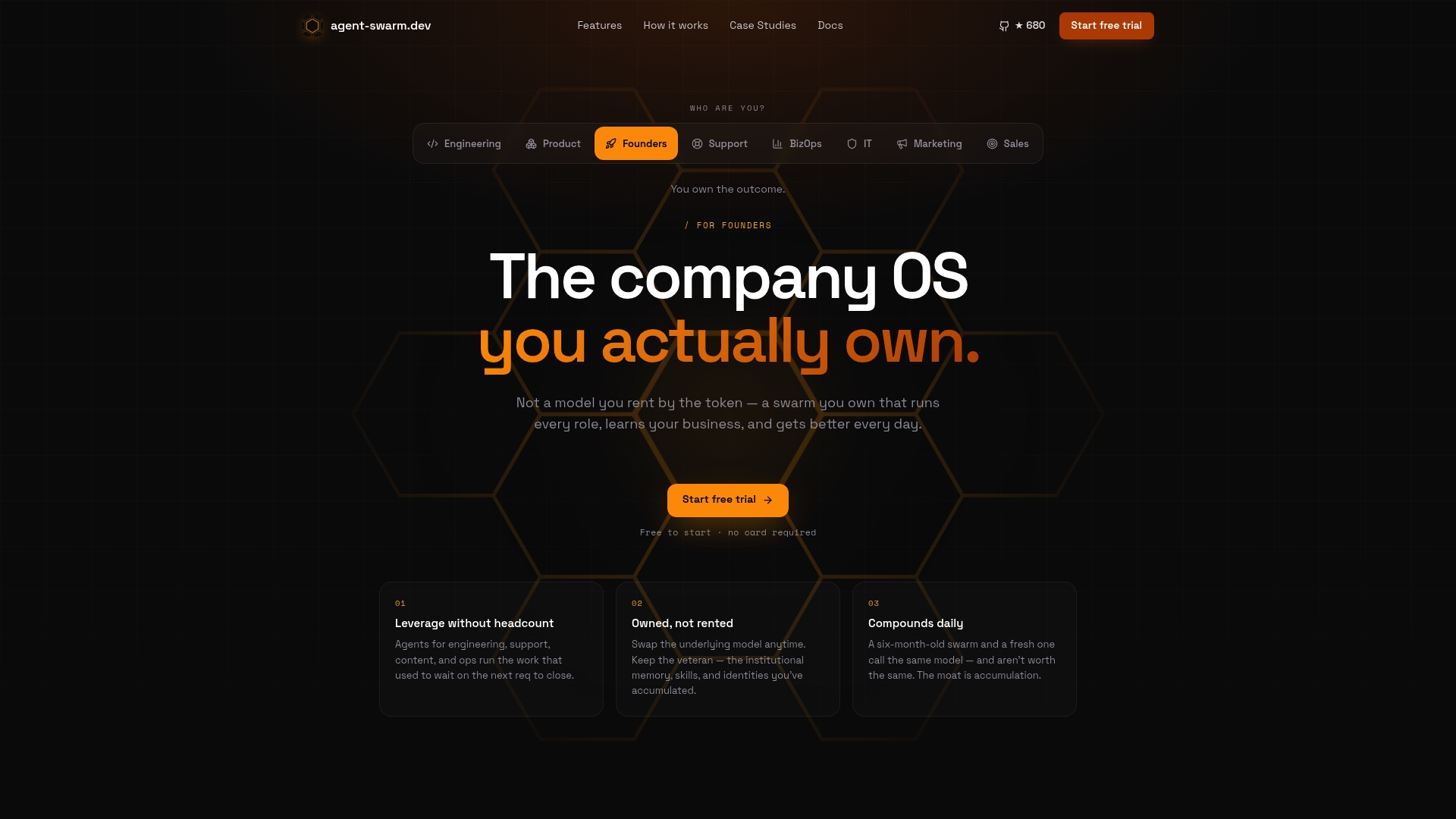
Teams that need complex, multi-step Slack automations — parallel tool calls, persistent memory across tasks, isolated worker execution — get there faster with Agent-swarm than by extending a single Slack agent or chaining Workflow Builder steps. Agent-swarm is an open-source multi-agent orchestration OS that integrates natively with Slack and runs specialized worker agents in isolated Docker containers, with shared memory that compounds across tasks.
Three situations where Agent-swarm is the right fit:
- Your automation requires parallel subtasks (e.g., simultaneous runbook lookup, deploy history query, and Slack notification during an incident).
- You need persistent contextual memory across multiple workflows and sessions, not just within a single thread.
- Your team prefers self-hosting for data residency and compliance control, or needs an enterprise plan with support and custom integrations.
Real deployment case studies show the orchestration patterns and time savings in production. If you want to see the session logs before committing, the examples page has annotated real-world runs. Start with the free self-hosted MIT deployment or trial the cloud SaaS — both are available at Agent-swarm.
Primary sources and further reading
- Developing an agent | Slack Developer Docs — API reference for the response loop,
chat.startStream, and required scopes includingassistant:write. - AI in Slack overview | Slack Developer Docs — MCP client/server patterns, agent surfaces, and design guidance.
- Slackbot, Personal AI agent for Work | Slack — Built-in agent capabilities: summarization, meeting prep, connected app access.
- Slack AI Agents with Agentforce | Slack — Agentforce actions, RAG, and zero-data-retention details.
- Generate AI steps in Workflow Builder | Slack Blog — No-code AI workflow setup and conditional logic.
- Work with AI agents in Slack | Slack Help Center — Admin controls, app approval policies, and guest exclusion.
- Guide to AI features in Slack | Slack Help Center — Plan-level feature availability.
- Agent-swarm — Production deployment stories and measurable outcomes.
Sources
FAQ
What is a Slack AI agent?
A Slack AI agent is an autonomous, goal-oriented app that receives input in Slack, reasons over workspace context, calls external tools, and streams output back to users — all without requiring a human to manage each step.
How does chat.startStream improve the agent experience?
chat.startStream pushes tokens to the Slack UI as they're generated, reducing perceived latency for longer responses. It's the key API for making custom agents feel responsive rather than slow.
Do Slack AI agents work on the free plan?
Most AI features, including Slackbot's agent capabilities and Workflow Builder AI steps, require the Slack AI add-on or Business+/Enterprise+ plans. The free plan does not include AI agent features.
What is the assistant:write scope and why does it matter?
assistant:write unlocks native Slack UI behaviors for custom agents: thread title management, status updates, and split-view integration. Without it, your agent can post messages but loses the native agent surface and feel.
When should a team use Agent-swarm instead of a single Slack agent?
Agent-swarm fits when a workflow requires parallel subtasks, persistent memory across sessions, or isolated worker execution — scenarios where a single Slack agent or chained Workflow Builder steps hit architectural limits. Real session examples show the pattern in production.
Recommended
Related field notes
We Rebuilt Linear's “Loops updates” Clip as a Swarm Video in Eight Rounds
Three video models read Linear's motion-design teaser; the two Gemini models called the 3D scene 2D until 7.5s. A frame-by-frame check caught it. The replica is 858 frames of Remotion and three.js, reviewed eight times.
SEO con agentes IA: guía práctica para automatizar sin perder el control
Aprende a automatizar tareas SEO con agentes de IA sin perder el control: define reglas, supervisa aprobaciones y gana tiempo para estrategia.
Pick Best AI Workflow Automation That Preserves Memory for Engineers
Engineering first guide to AI workflow automation: pilot plan to prove ROI and why agent-swarm.dev fits teams needing persistent memory.